Setup Product And Store Reviews
Introduction
Customer reviews play a key role in influencing purchase decisions and building trust with your audience. Setting up Product and Store Reviews allows you to collect valuable feedback, showcase customer experiences, and strengthen your brand’s credibility.
With a proper setup, you can automatically gather reviews, display ratings on your storefront, and use this feedback to improve both your products and overall customer experience.
Here are the steps to set up and store reviews:
Step 1: First, enable the review module. To enable it, go to Product Reviews >> Dashboard > click on the Enable now button.
Step 2: The setup wizard will start automatically.

Note: If the setup wizard didn't appear, you need to click on Start setup guide.
Step 3: Click on Enable app embed. In the new tab, you will be redirected to the Shopify page.
Enable the app block and click on the Save button
Go back to the previous tab and click on the Continue or Skip button.
Step 3: Click on the Install review widget button
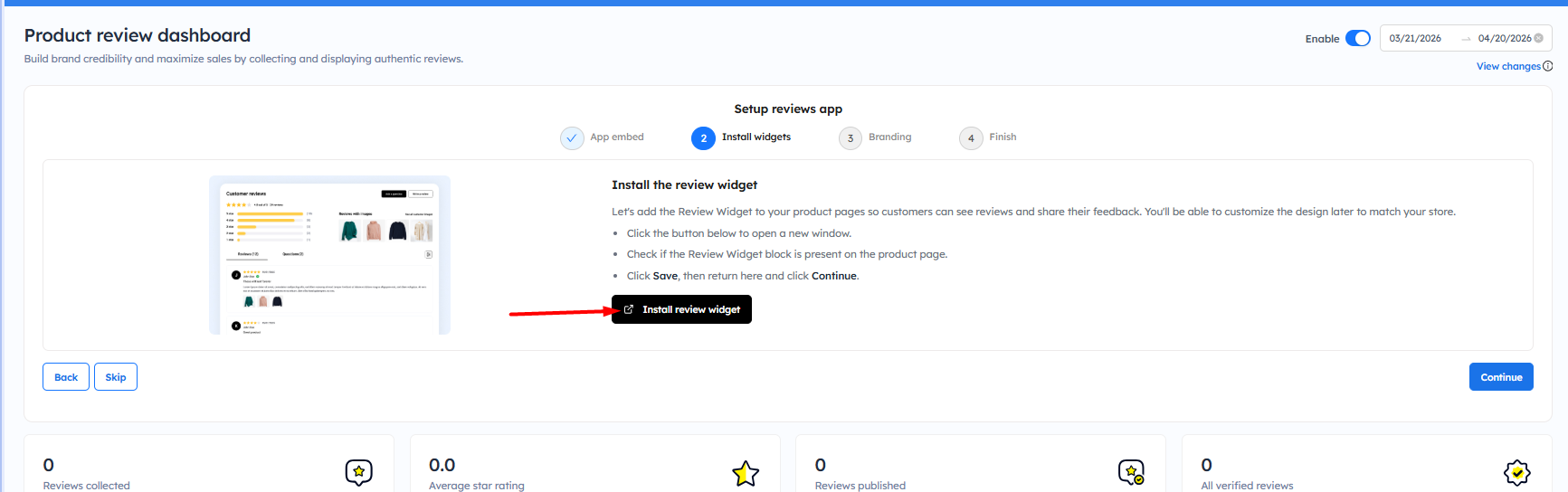
Step 3: A new tab will open, displaying the Shopify theme editor settings. The review form block will be automatically added to the block section. Click on the Save button.
Note: If you want to change the place of the review form, you can drag and drop the review form block as per your needs.
Step 3: Go back to the previous tab and click on the Continue button, or if the Continue button is disabled, click on Skip.
Step 4: Change the star color, text color, and font family to match your store’s design. You’ll see a live preview on the left side—then click the Continue button. The available settings are:
- Rating Star Color: Set the color of the star ratings displayed in reviews. Choose a color that aligns with your brand or highlights ratings clearly.
- Review Text Color: Customize the color of the review text content. Ensure the text color provides good contrast for better readability.
- Font Family: Select the font style used in the review section. Choose a font that matches your store’s overall typography for consistency.
Now, the setup of the product review form is successfully completed. You can check the details on the product page of your store.
You can check the article to learn more about how to customize the site review button.
Here are some Review Widget help topics you can take a look at:
Learn how to Setup Review Forms on Product Page
Learn how to Setup a Site Review Gallery / Page
Learn how to Setup Google Rich Snippets integration
Learn how to Setup a review slider/carousel
Learn how to Group Product Reviews