Set Up a Review Slider
Introduction
A Review Slider allows you to showcase customer feedback in a dynamic and visually engaging format on your store. By setting up a review slider, you can highlight selected reviews, improve social proof, and capture visitors’ attention as they browse. This feature helps present positive customer experiences in a compact, interactive way, making it easier for potential customers to build trust and make informed purchasing decisions.
Here are the steps to create a reviews slider:
Step 1: Go to Product Reviews >> Display on store >> Review display
Step 2: Change the settings as per your needs and click on Update settings. The available settings are:
Button Color: Set the color of navigation buttons (such as arrows or controls) in the review slider. Choose a color that matches your store’s theme for a consistent look.
Text Color: Customize the color of the review text displayed in the slider. Ensure good contrast for better readability.
Reviews in Slider: Define how many reviews are displayed at a time within the slider. A lower number keeps the layout clean, while a higher number shows more content at once.
Reviews to Display: Choose which reviews should appear in the slider:
- Latest: Displays the most recent reviews
- Featured: Displays manually selected or highlighted reviews
 Note: If no featured reviews are available, the review slider will not be displayed.
Select the option that best supports your marketing or social proof strategy.
Step 3: Go to the Shopify admin >> Online Store >> Themes >> Edit theme.
Step 4: Click the down arrow next to the Home page, search for the page where you want to add the review slider, and select it from the menu.
Note: If you have not created the page, follow the steps below:
A) Go to Shopify admin >> Pages >> Add pages
B) Add the title of the page, mark the page as visible, and click on Save.
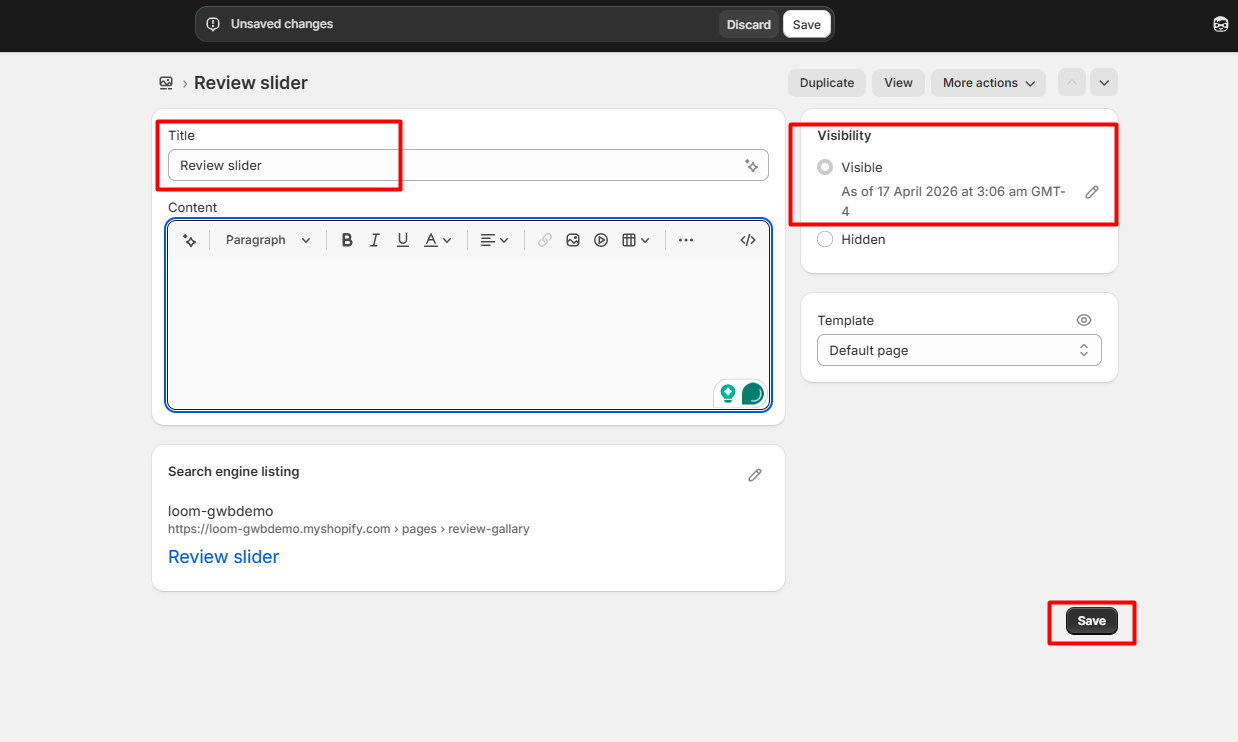
Now, you can go to Step 4 and search for the title/page name.
Step 5: Click on Add section >> Apps >> click on Featured review slider.
Now you will be able to see the Review Slider on that page.
Important Notes
- Ensure that reviews are available in your store, the review slider will not display if there are no reviews.
- The display of reviews depends on your selected filters (e.g., latest, featured, or specific ratings).
- Always click Update Settings after making changes to apply them correctly.
- Choose a layout and design that matches your store theme for better visual consistency.
- Limit the number of reviews shown to avoid slowing down page load speed.
- If the slider is not visible, double-check that it has been added to the correct page and section in your theme editor.
- For new pages, make sure the page is saved and properly assigned before adding the review slider section.
- The slider visibility may vary based on device responsiveness and theme compatibility.