Set Up Membership Benefits with Automatic Order Placement
Introduction
Membership Benefits with Automatic Order Placement allow you to automatically create and process orders for members when they purchase or renew a membership. This feature can be used to provide free products, create draft orders for manual payment collection, or generate paid orders based on your membership benefits.
In this article, you'll learn how to configure automatic order placement, set the order frequency, choose the products to include, and deliver membership benefits seamlessly to your customers.

Note: This feature can be used to automatically create a free gift order, draft order, subscription order, or bundle order when a customer purchases a membership.
How to set up?
Follow these steps to configure automatic order placement for membership purchases and renewals:
Step 1: Go to Membership V2 >> Membership plan
Step 2: Click on Membership perks.

Note:
- Ensure that you have already created the membership plan. To learn how to create a membership plan, click here.
- This feature works with both manual renewal and automatic renewal memberships.
- Ensure that the membership product is not deleted. If the product is deleted, the automatic order will not work.
Step 3: Click on Add membership perk.
Step 4: Select the perk Place an order.
Note: The Place an order can be created once per membership. If you create more then one perk as place an order, it will not work.
Step 5: The settings will appear, which you can configure.
Order Frequency: Configure how often an order is automatically created for the member. The first order is automatically placed when the customer purchases the membership. Subsequent orders are created based on the frequency you configure.
- Place an order every – Specify how often an order should be created (for example, every 1 month, 2 weeks, or 3 months).
- Recurring order day – Choose the day on which recurring orders should be placed. You can use the same day as the membership purchase or select another schedule.
Note: The order frequency depends on the renewal frequency of the membership plan. - Allow members to choose their order day – Enable this option to let customers select their preferred recurring order date.
Note: You cannot set the Allow members to choose their order day if the membership is of 1. The membership plan must be more than 2 months to use this setting.
Choose Order Products: Select the products that should be included in the automatic order for members.
- Add a product – Search for and add one or more products that will be included in each automatically created order.
- Gifted Products – Displays all products that have been added to the membership perk. These products will be included whenever an automatic order is created.
Order Tag: Enter a tag to automatically apply to every order created through this membership perk. Order tags make it easier to identify, filter, and manage membership-generated orders in your Shopify admin.
Step 6: Once everything is done, click on Save perk.
Note: You can deactivate the perk anytime according to your needs by disabling the active button.
How can customers check or place the membership order?
Step 1: Go to your membership page and click on View Details.
Note: If you have not set up the membership page, there are 2 ways to check membership details, which are:
1. Set up the membership page, click here to learn how to setup.
2. Customer account, click here to learn how to setup.
3. Ensure that the customer has already purchased the memebership.
3. Ensure that the customer has already purchased the memebership.
Step 2: Now, click on Perk order, and customers will be able to see the order that is in pending mode.
How will the store owner manage the order?
Step 1: Go to Shopify admin >> Orders
Step 2: Click on the order number.
Note: The membership perk order will appear as AiT Loyalty, Review, Affiliate in the channel column.
Step 4: Click on Mark as fulfilled to fulfill the order.
Note: If you want to cancel the order, go to more action from right side bar and click on Cancel order.
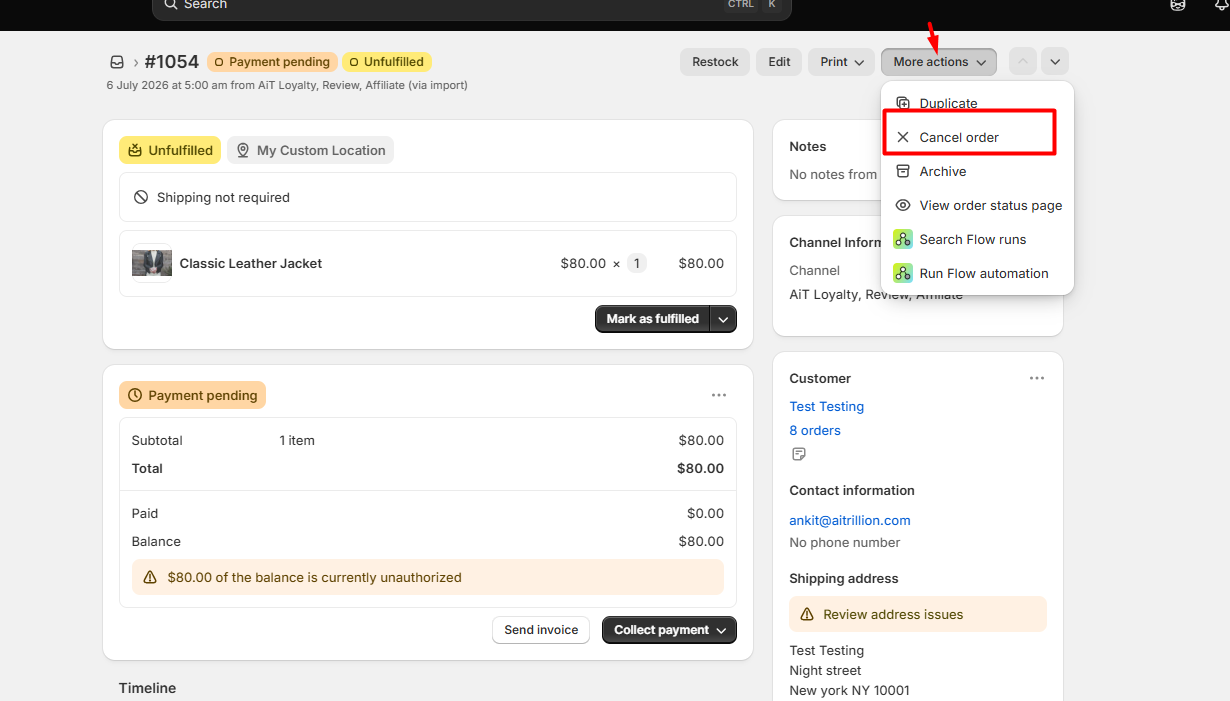
Step 3: Click on Collect payment and mark as paid.
Note: If you are providing a free gift, you can mark the payment method as others or COD and click on Mark as paid. If you don't mark the product as paid, it will show the status as pending to the customer.
Now, the order will be sent to the customers based on the order date or settings which you have selected while creating the perk.
Customers can also select the date to receive the order if the settings - Allow members to choose their order day - is enabled.
Note: If a customer changes their recurring order date, the order frequency remains unchanged. For example, if the customer changes their order date from the 2nd to the 5th of the month, future recurring orders will be placed on the 5th of every month according to the configured order frequency.
Important Notes
- The first order is automatically created when the customer purchases the membership.
- This feature is supported for both manual renewal and automatic renewal membership plans.
- Configure the order frequency to match the membership renewal frequency to ensure orders are created at the correct intervals.
- Customers can change their recurring order date (if enabled), but the configured order frequency remains unchanged.
- You can configure this feature to create free gift orders, draft orders, paid orders, or bundle orders, depending on your membership setup.
- Ensure that all products added to the membership perk are active and available for purchase.
- Use Order Tags to easily identify and filter membership-generated orders in your Shopify admin.
- If members are allowed to choose their recurring order day, future orders will follow the customer-selected date while maintaining the configured order frequency.
- Test your membership plan before making it live to verify that orders are created correctly and the expected products are included.