Manage WhatsApp Conversations with Team Inbox
Introduction
The Team Inbox (WhatsApp) enables you to efficiently manage all customer conversations from a single, centralized dashboard. It allows your team to view, organize, assign, and respond to WhatsApp messages in real time, ensuring no conversation is missed.
With features like chat assignment, status tracking, customer insights, and internal notes, agents can handle conversations more effectively and provide faster, more personalized support. This helps streamline communication, improve team collaboration, and enhance the overall customer experience.
Prerequisites
Before enabling two-way conversations, make sure:
- WhatsApp marketing module is enabled.
- Ensure your WhatsApp Business API is connected. To learn how to connect it, click here.
- You have an active WhatsApp number approved by Meta for WhatsApp messaging.

Note: You can also send one-to-one WhatsApp messages to the customers. To learn more, Click here.
How can I check WhatsApp messages sent by customers?
To view WhatsApp messages sent by customers, go to WhatsApp >> Team Inbox, then click on the name of the customer whose messages you want to check.

Note: You can initiate the conversation by sending a one-to-one WhatsApp message to the customer. To learn more, click here.
How Agents Can Manage Customer Chats in WhatsApp Team Inbox?
Note: To learn how to create multiple agents, click here.
Once an agent clicks on a specific message, they can reply and manage the conversation. Refer to the details below.
Available settings
A) Chat Filter (Top Left – “All chats”):
This dropdown allows you to filter conversations based on their status, such as:
- Chats: This section allows you to filter conversations based on their activity and assignment:
- Active chats – Displays currently active conversations.
- Expired chats – Shows chats where the WhatsApp session has expired.
- Assigned to me – Displays chats assigned specifically to you.
- Status: Filter chats based on their current status:
- Open – Ongoing conversations that require attention
- Pending – Conversations awaiting response or follow-up
- Solved – Completed or closed conversations
- Open – Ongoing conversations that require attention
- Date: Use this option to filter conversations based on time:
- All time – Displays chats from all time periods.
- You can select a specific timeframe (if available)
- All time – Displays chats from all time periods.
- Apply & Clear Filters: Click Apply to view chats based on selected filters. Click Clear All to reset and remove all applied filters
B) Conversation Status & Timer (Top Center): This section shows:
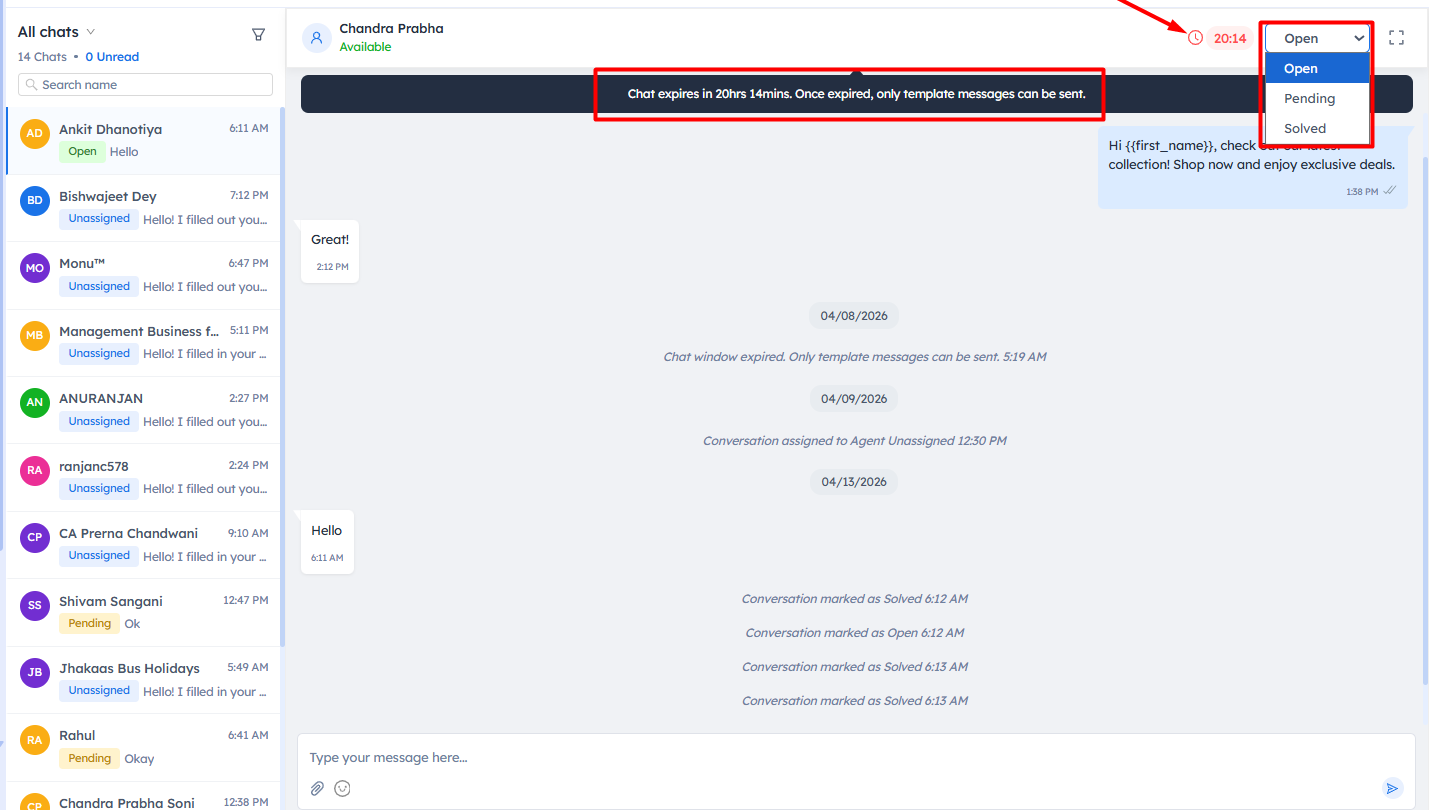
- The current status of the conversation (e.g., Open, pending, or solved)
- The WhatsApp session timer i.e, 24 hours, indicates the remaining time within the 24-hour messaging window.
Note: Once the timer of 24 hours expires, you/agents can only send messages via template or, workflows, or WhatsApp campaigns. They cannot send WhatsApp messages without approval.
C) Customer Details Panel:
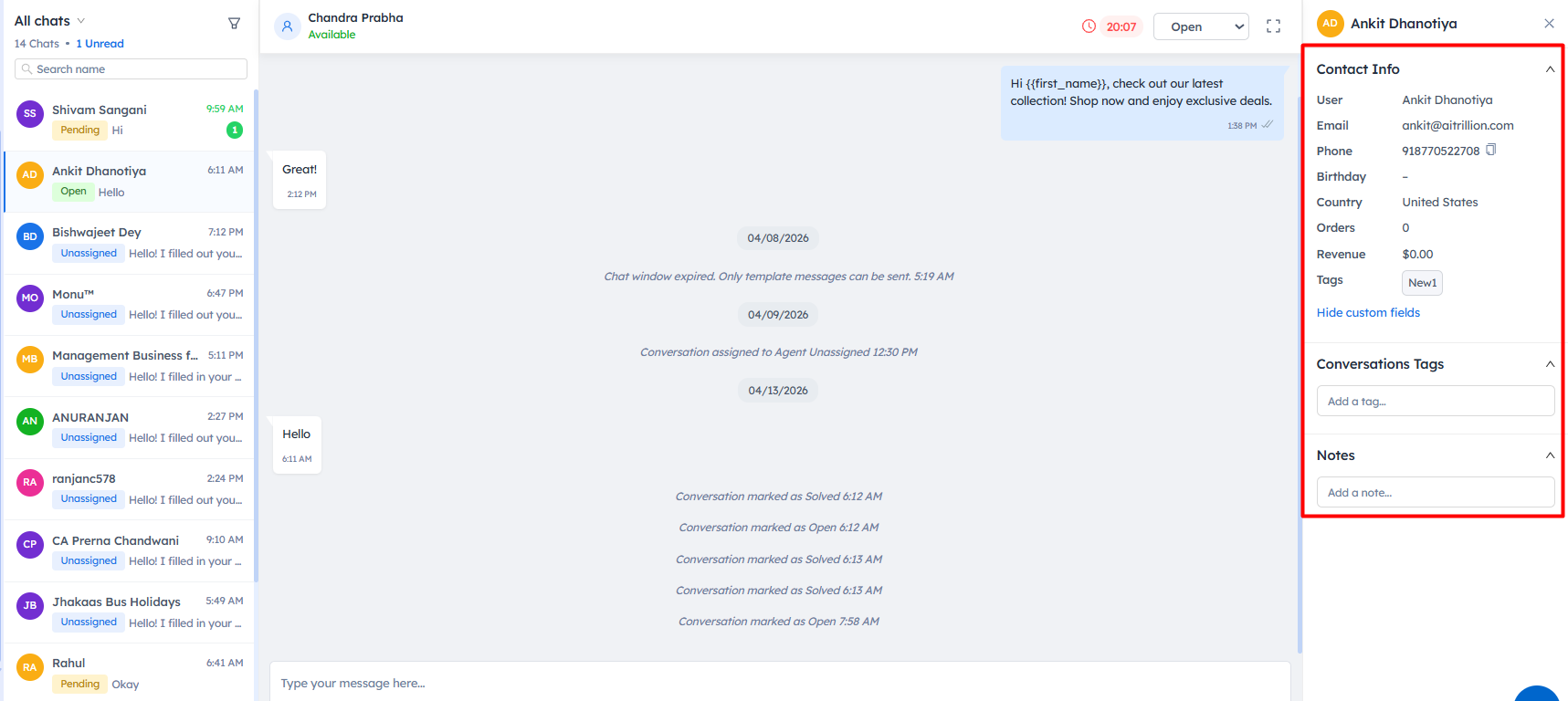
This panel provides detailed information about the selected customer, including:
- Name, email, and phone number
- Country and order history
- Total revenue generated
- Tags and custom fields
You can also:
- Add conversation tags
- Write internal notes for team reference
- View the last five orders placed by a specific customer.
4. Message Input Box (Bottom)
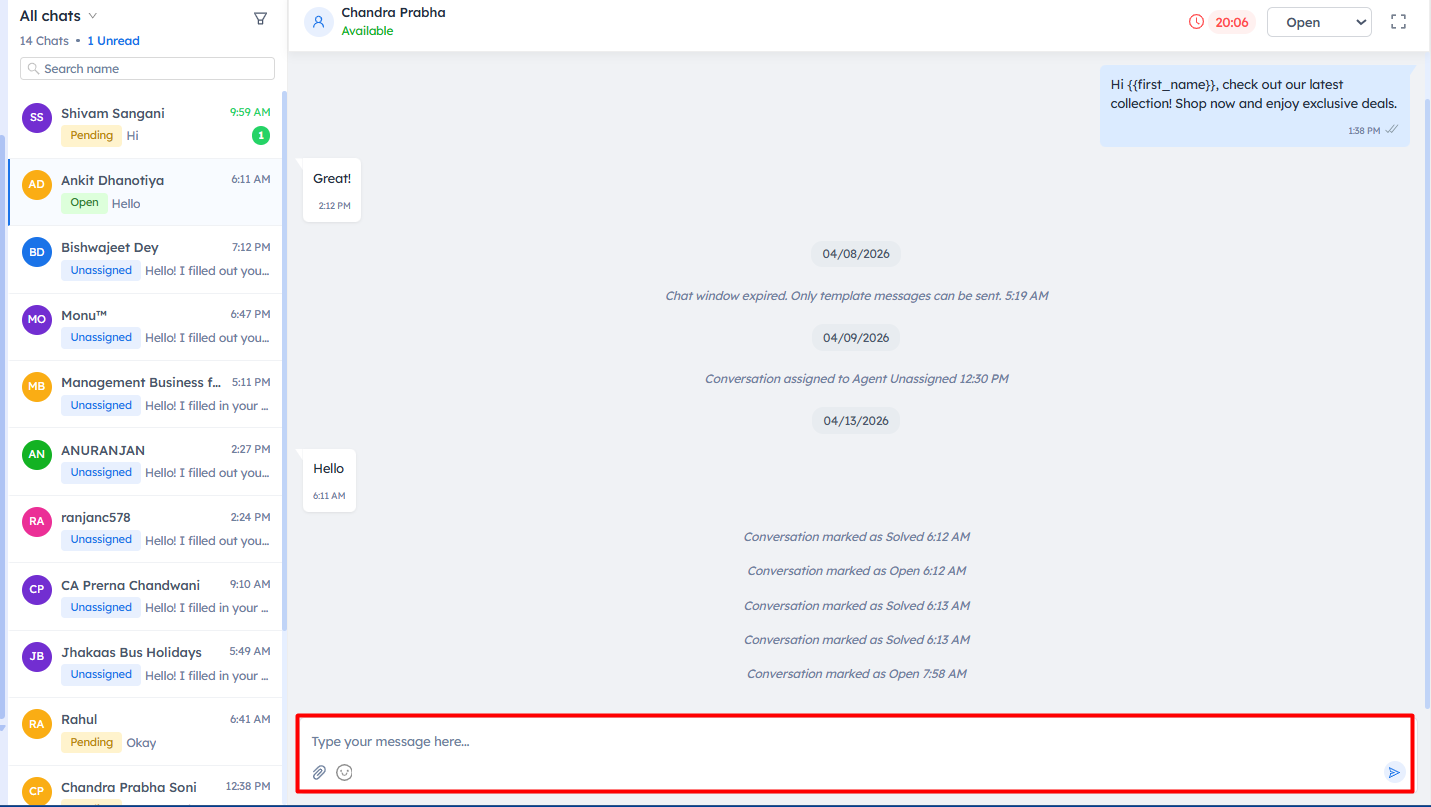
This is where agents can:
- Type and send messages to customers
- Attach files or media (if supported)
- Send emojis to the customers

Note: Free-form messages can only be sent within the active WhatsApp session window, which is limited to 24 hours.
Important Notes
- Free-form messages can only be sent within the 24-hour WhatsApp session window. After this period, only template, workflow, or campaign messages can be used.
- Once the chat session expires, replying directly is restricted. You must either send a campaign, assign the customer to a workflow, or wait for the customer to reply to restart the chat.
- Ensure your WhatsApp Business API is properly connected and active to receive and send messages without interruptions.
- Assign conversations to agents promptly to avoid delays in response and improve customer experience.
- Use filters (Active, Pending, Assigned, etc.) to efficiently manage and prioritize conversations.
- Conversation status (Open, Pending, Solved) should be updated regularly to maintain workflow clarity.
- Customer details, tags, and notes can be used to personalize responses and maintain internal context.