Add a Single Customer to Manual Membership
Introduction
In AiTrillion’s Membership V2, you have the flexibility to add individual customers to a membership plan manually—perfect for cases where automation isn't ideal or when handling special member requests. This article walks you through the simple steps to add a single customer to a manual membership plan, ensuring they receive the correct access and benefits without hassle.
Here are the steps to add a single customer to a manual membership:
Step 1: Go to Customers >> All customers
Step 2: Click on Add Filter >> choose a filter using First Name, Last Name, or Email. For example, I'm filtering by the specific customer's email to whom I’m assigning the manual membership >> Click on the First name or View details.
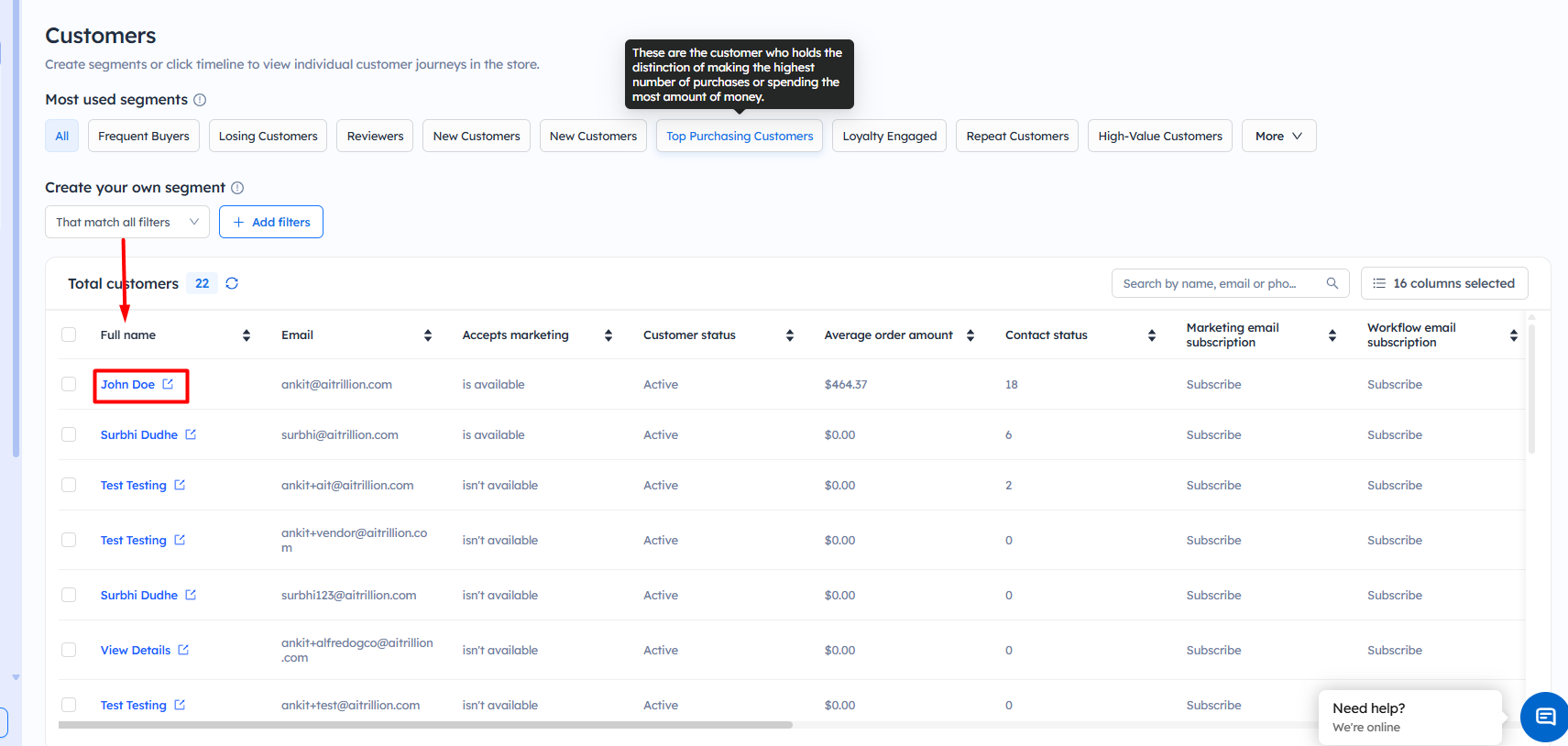
Step 4: Click on Membership >> Add to membership
Step 5: Select membership >> Subscription date >> Expiration date and click on Add
Select membership - Select the membership you wish to assign to the customer.
Subscription date - The start date of the subscription when the benefits will begin.
End date - The date when the membership will expire.

Note📝:
1.) Members can't be added to an Auto Renewal membership
2.) Once the membership expires, members will need to purchase it again, or you will need to manually re-add them to the membership
Now, the customers will be able to access the membership
Important Notes
- Manual memberships are ideal for assigning memberships directly to specific customers without requiring a purchase.
- Ensure that the membership plan is already created before assigning it manually to customers.
- You can search for customers using their First Name, Last Name, or Email Address to quickly locate the required customer.
- Manual memberships can only be assigned individually from the customer profile section.
- Select the correct membership plan before assigning it to the customer.
- The Subscription date represents the start date of the membership benefits.
- The Expiration date determines when the membership access will end.
- Members added manually will not be included in the Auto Renewal Membership process.
- Once the membership expires, customers will need to purchase the membership again or be manually re-added to continue receiving membership benefits.
- Ensure the selected dates are accurate to avoid membership access issues.
- After entering all details, click the Add button to assign the membership successfully.
- Changes may take a few moments to reflect in the customer membership portal.