Send Shipment Details After Order Fulfillment Using Workflow
Introduction
Automatically send shipment and tracking details to customers after an order is fulfilled using workflows. With shipment shortcodes, you can include important fulfillment information such as tracking number, shipping company, and tracking URL in your automated messages. In this article, you will learn how to configure workflows to send shipment details after order fulfillment in AiTrillion.

Note: Shipment details will only be sent when the Order Fulfillment trigger is used.
Here are the steps to send shipment details using Workflow:
Step 1: Go to Workflow automation >> Email messages >> click on the Create from scratch button.
Step 2: Click on New editor.
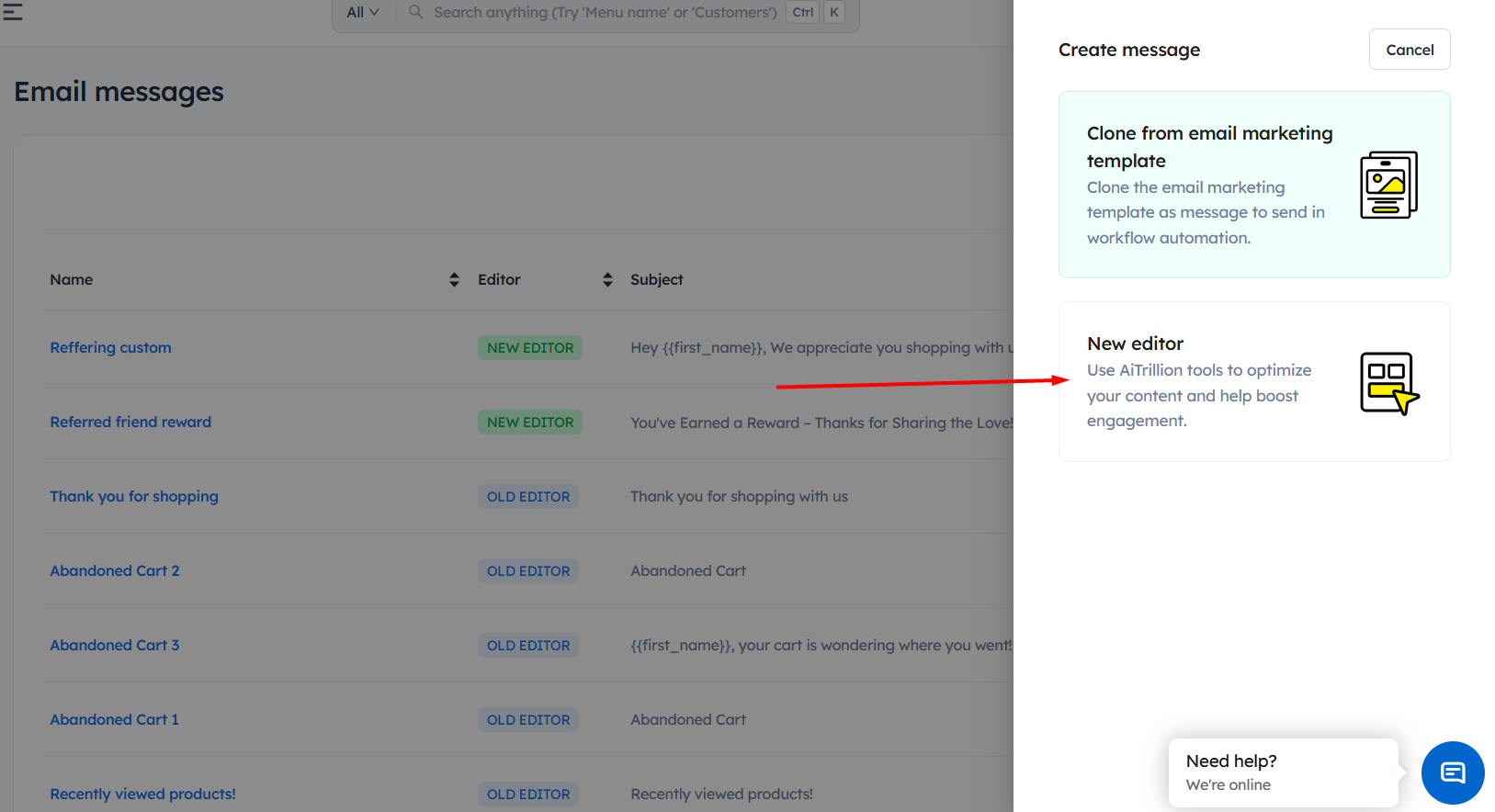
Step 3: You can edit the template as per your need, and there are a few tracking codes which you can use, which are:
shipping_shipment_status— Displays the current shipment status of the order, such as Shipped, In Transit, Out for Delivery, or Delivered.shipping_tracking_company— Displays the name of the shipping carrier or tracking company used for the shipment, such as FedEx, UPS, DHL, or USPS.shipping_tracking_number— Displays the tracking number associated with the shipment, allowing customers to track their package.shipping_tracking_url— Displays the direct tracking URL that customers can click to view the live shipment tracking details on the carrier’s website.
Step 4: Click on Save and exit, give the name to the template with Email subject and click on Save & exit.
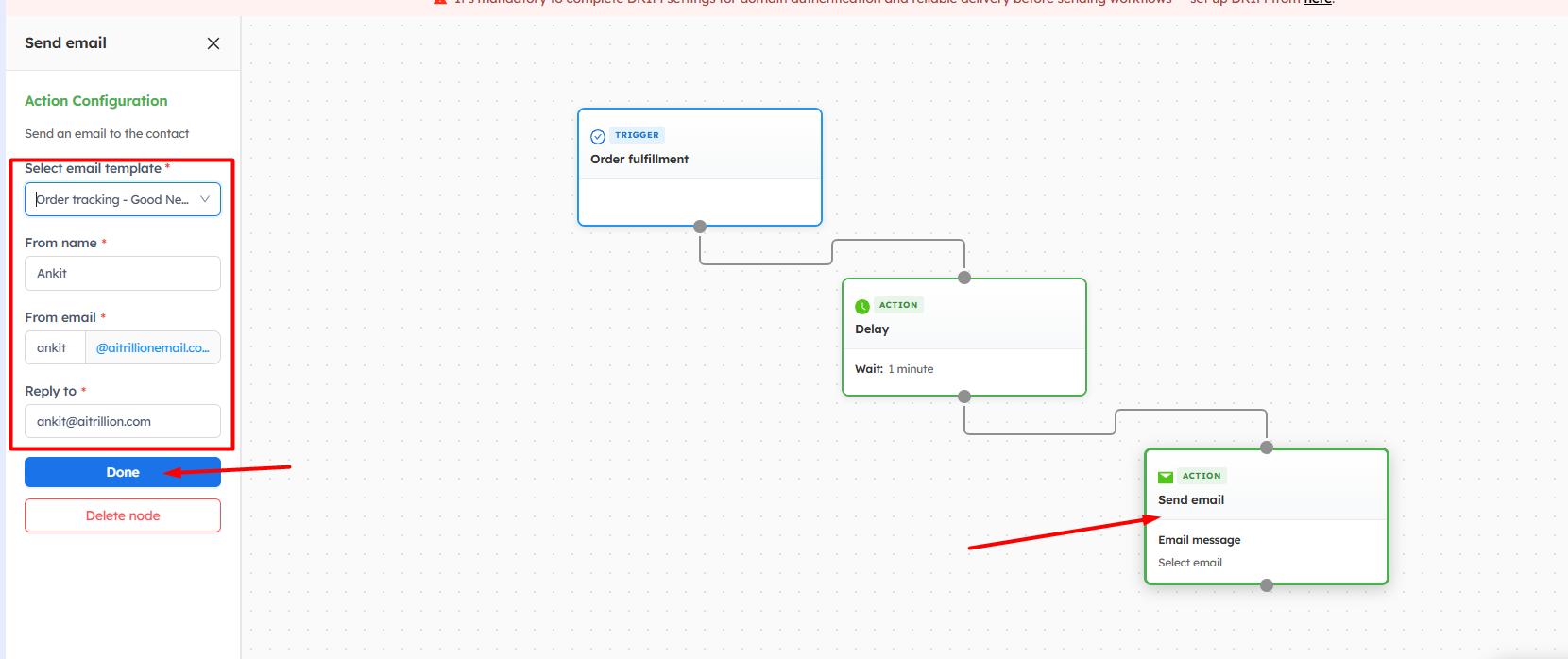
Step 6: Now drag and drop the Order Fulfillment and Send Email blocks into the workflow editor and connect the nodes.
Note: You can add the delay according to your requirement, but it is recommended to keep at least 1 minute of delay.
Step 7: Now, click on Send email node, select the email template, add the required details, and click on Done.
Step 7: Give a name to the workflow, set up the contract throttle, and mark the workflow as active.
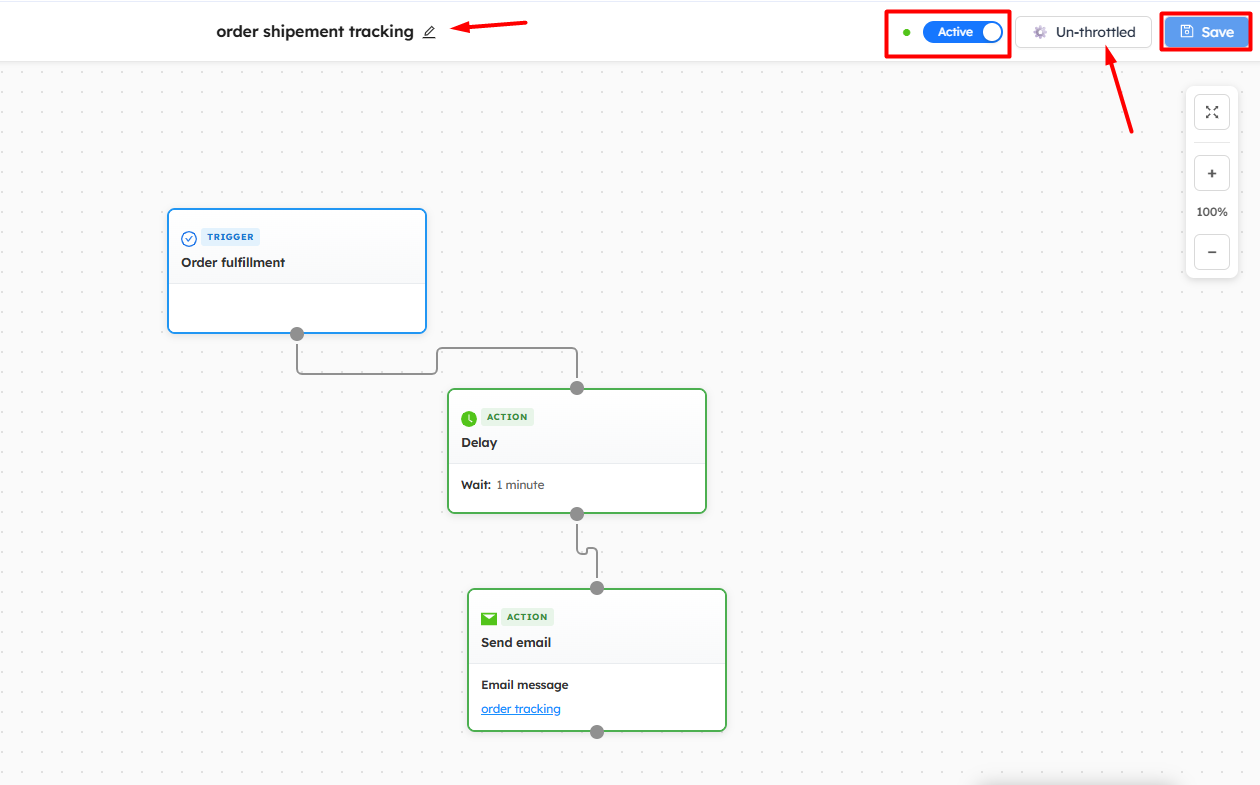
Now, whenever the order is marked as fulfilled, the email will be sent to the customers with the shipment details.
Important Notes
- Shipment details will only be sent when the Order Fulfillment trigger is used in the workflow.
- It is recommended to add at least a 1-minute delay between the Order Fulfillment and Send Email blocks to ensure shipment data is properly synced.
- Verify that the shipment shortcodes are added correctly in the email template to display tracking information.
-
Customers will only receive the shipment email after the order is marked as fulfilled in Shopify.